What Is Onboarding Automation for Small Teams?
Onboarding automation helps small teams coordinate hires, accounts, access, training, handoffs, and exceptions while preserving human review.
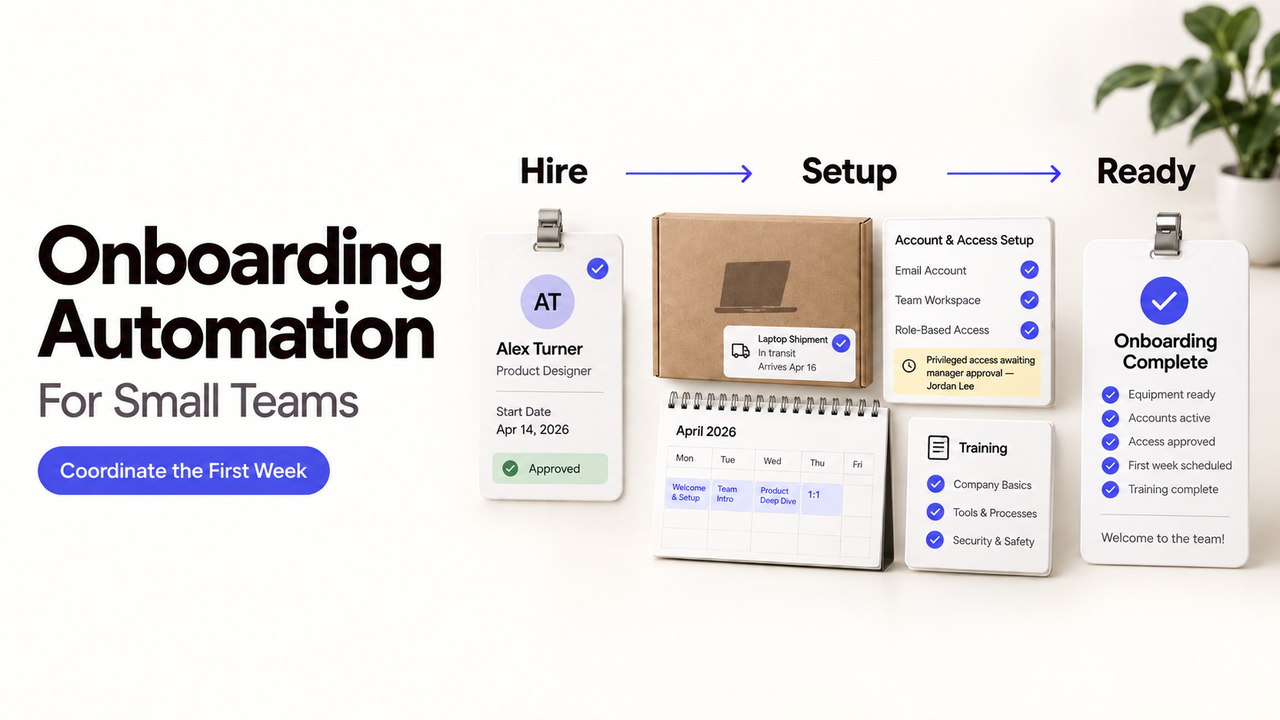
A new employee can have an email address and still be unable to work. The laptop is in transit, the manager has not approved application access, and nobody knows whether required training was completed.
I’m Alex. Useful onboarding automation connects those loose ends and shows who owns each exception.
This guide follows one path from an approved hire to confirmed first-week completion. It uses public product documentation checked on September 23, 2026, not a hands-on platform test or HR advice.
What Is Onboarding Automation for a Small Team?
Onboarding automation uses an approved hire record to start repeatable setup tasks and track their completion. It coordinates People Ops, the manager, IT, facilities, and the new employee.
From before day one through the first week, it gathers details, prepares equipment and accounts, requests access, schedules training, and checks whether the person can work. A welcome message is not completion.
Define the finish first: approved equipment and access, clear first-week tasks, and a place to report blockers. Automation should not decide worker classification, privileged access, or policy exceptions.
Which Onboarding Tasks Should You Automate?
Automate repeated coordination: create requests, send reminders, and check status. Leave employment decisions and sensitive permissions to authorized people.
Start With an Approved Hire and Reliable Employee Data
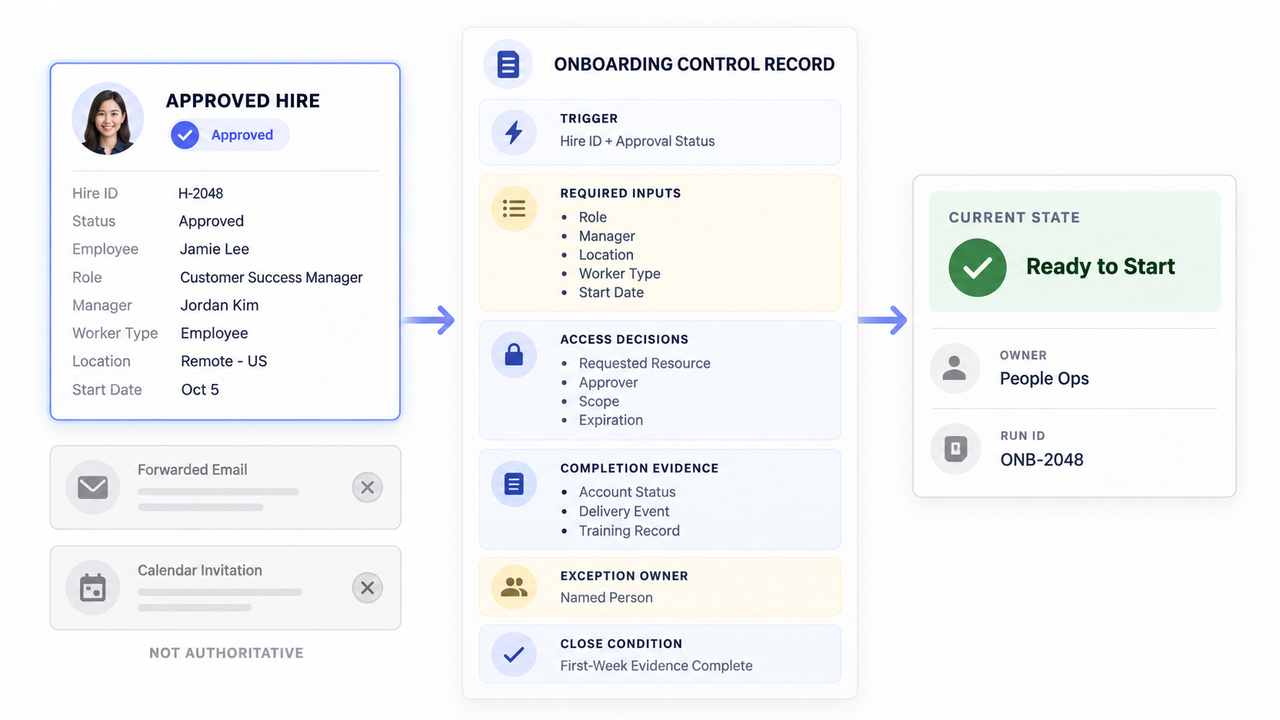
Use an approved hire record as the trigger. A forwarded email or calendar invitation is too easy to change, duplicate, or send before the hiring decision is final.
Choose one authoritative source for name, role, manager, worker type, location, and start date. Record who may correct each field and how a change re-enters the workflow.
Keep a short record for each hire:
Record | What it should show |
Trigger | Approved hire ID and approval status |
Required inputs | Role, manager, location, worker type, and start date |
Access decisions | Requested resource, approver, scope, and expiration |
Progress | Account, equipment, training, and first-week task status |
Blocker | Who can resolve a delay or failed action |
This record makes the employee onboarding workflow reviewable when a date changes or one system is late.
Prepare Accounts, Equipment, and Access Requests
An approved role and start date can create IT and equipment tasks. Separate identity creation from access approval: a basic account may be prepared from approved data, but application roles and sensitive groups need their own route.
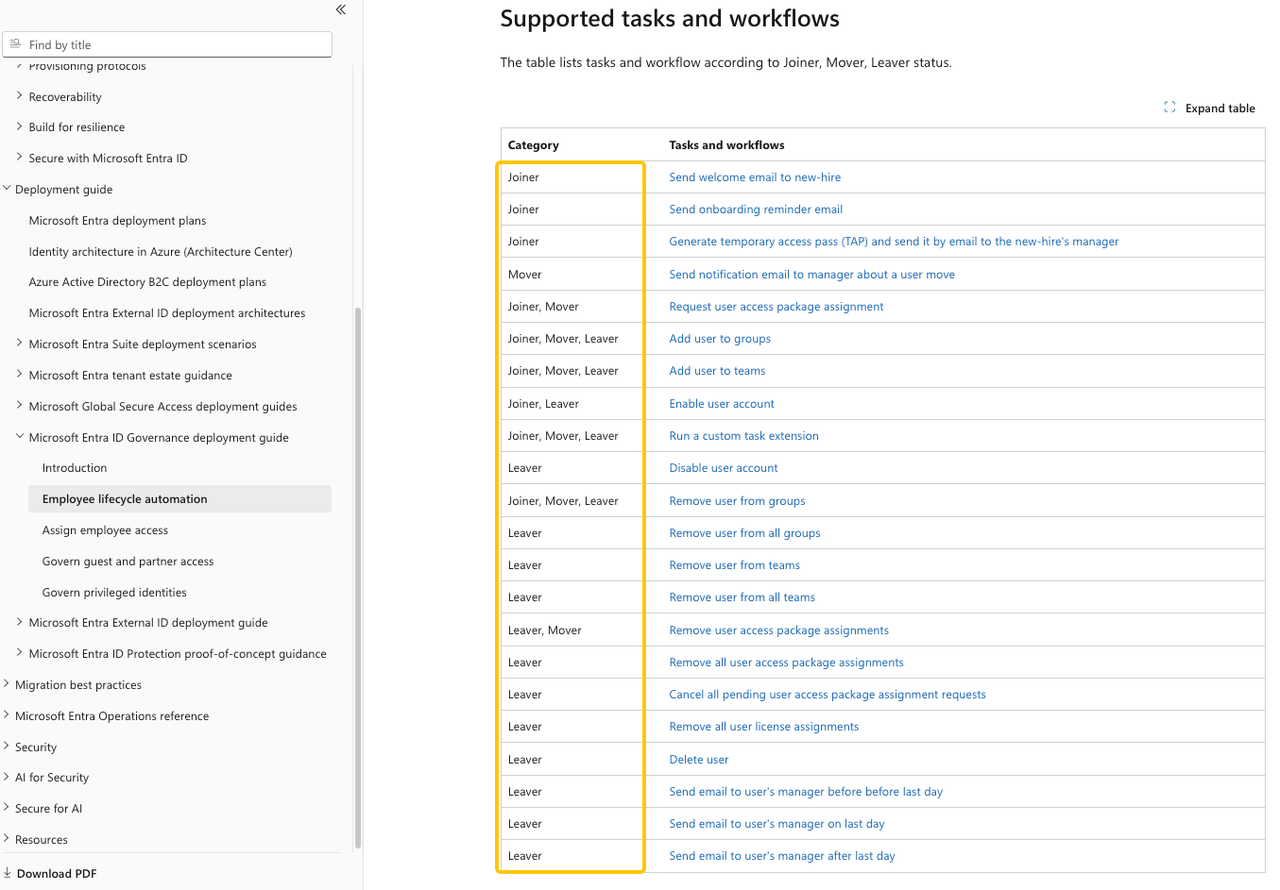
Show the manager what each requested role includes. Require explicit approval for privileged or sensitive access. Microsoft’s employee lifecycle guidance distinguishes joiner, mover, and leaver events; day-one access should not become permanent by accident.
Schedule Training and First-Week Tasks
Assign training by role and current policy. The workflow can schedule manager meetings, send reminders, and show overdue items to the right person.
A sent invitation is not completion evidence. Capture status from the training system, or have a responsible person confirm an offline activity. Give the new hire a named contact for questions a checklist cannot answer.
How Do You Build an Employee Onboarding Workflow?
Build around observable results. Microsoft’s Lifecycle Workflows overview illustrates tasks, user scope, and hire-date triggers. A platform-neutral sequence looks like this:
- People Ops approves the hire and verifies role, manager, location, and start date.
- The workflow creates account, equipment, training, and meeting tasks for the responsible teams.
- The manager reviews access requests; IT provisions only the approved permissions.
- The employee confirms they can sign in, receive equipment, and find help.
- Each owner confirms completion or accepts a named exception before the first-week record closes.
If a required field is absent, route the record back to People Ops rather than guessing. If the start date changes, update the authoritative record first, then revisit activation, shipping, meetings, and deadlines.
Where Does Human Review Still Matter?
Human review belongs where the workflow changes authority or interprets policy: privileged access, unusual equipment, worker classification, regional requirements, and exceptions to standard training.
Give approvers the employee, requested resource, business reason, access scope, proposed duration, and requester. A bare “approve access” button encourages decisions without context.
Check the employee's experience as well as system status. An account may show “provisioned” while the employee cannot sign in; a laptop may show “shipped” without arriving. Send each blocker to the person who can resolve it, not back to the new hire to diagnose.
Limit automation credentials to necessary actions. Keep a stop and revocation route, plus a record of consequential approvals. These are operational controls, not an HR, privacy, security, or legal guarantee.
How Should a Small Team Test Its First Onboarding Workflow?
Choose one common role with a stable access bundle. Run an ordinary hire, a changed start date, a missing manager, a returning worker, and a failed account action.
Confirm that repeated triggers do not create duplicate accounts or tasks. Ask each owner whether the handoff includes enough context to act without searching through email.
Expand only after the team can recover from the exceptions. A clean demonstration proves little if the first changed date leaves an active account unattended.
How Do You Measure Onboarding Automation?
Measure from approved hire to the agreed readiness point. Track time to the first working login, equipment delivery, access approval, training completion, and first-week closure.
Count missing inputs, failed actions, reopened tasks, and employee-reported blockers. Review whether access was broader than the role required. Ask the new hire which step still felt confusing or delayed.
A workflow that closes while the employee remains blocked has improved the dashboard, not the onboarding experience.
What Are the Common Onboarding Automation Failures?
The most damaging failure is an unreliable trigger. A draft hire record can start purchasing, account creation, and messages before approval.
Other failures include stale role bundles, duplicate identities, personal accounts used for system actions, and tasks with no backup owner. Date changes may update the calendar while leaving account activation and shipping unchanged.
Checklist automation can also hide incomplete work. If the system records “email sent” instead of “employee received access,” the workflow measures activity rather than readiness.
If connected capabilities are needed later, evaluate SpringBrand’s current plugin marketplace against the exact action, permission, input, and failure path. This article does not establish that a particular HRIS, identity, training, or equipment plugin is available.
Conclusion
Onboarding automation should make readiness visible. Start from an approved hire, keep employee data authoritative, separate account creation from access approval, and require evidence for training, equipment, and first-week tasks.
The strongest workflow is not the one that sends the most messages. It is the one that tells a small team what is ready, what is blocked, and exactly who must act next.
FAQ
How should the workflow handle a returning employee with old accounts?
It should pause new account creation and reconcile the returning person with the existing identity. Review account status, prior access, retained data, manager, worker type, and current role before restoring or replacing anything.
Do not assume old access is still appropriate. Treat the return as a new approval event while preserving the audit link to the earlier identity where organizational policy permits.
What happens when a start date changes after accounts are provisioned?
The authoritative hire record should update first, and the workflow should recalculate every date-dependent action. Review activation, temporary credentials, equipment delivery, meetings, training, and access expiration rather than changing only the welcome message.
Microsoft documents scheduling based on the employeeHireDate attribute in its Lifecycle Workflow planning guidance. Teams using another platform should verify its rescheduling and catch-up behavior instead of assuming an edited date reverses completed actions.
Should contractors and employees use the same onboarding workflow?
Usually not as one undifferentiated route. They may share identity verification and equipment steps, but access, sponsorship, duration, policies, and offboarding triggers can differ.
Use worker type as a validated input and branch to separately approved bundles. Classification decisions belong to qualified people, not the automation. This is general operational information, not HR or legal advice.
Can temporary access expire automatically after onboarding?
Yes, if the identity platform supports time-limited assignments and the workflow records the expiration. Microsoft Entra access packages can include an expiration date or duration, although not every package has one.
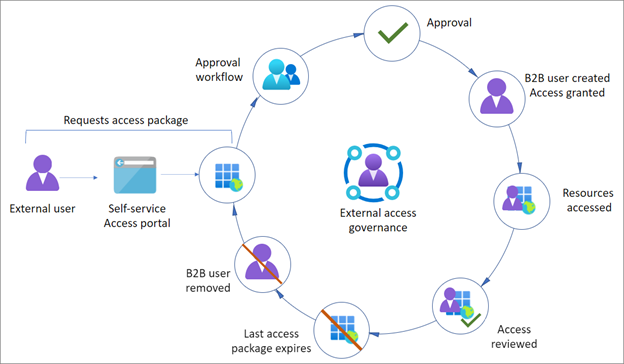
Expiration does not replace review. Confirm what is removed, what remains through another group or role, and who receives a failure alert.
Can onboarding automation track equipment shipping for remote hires?
Yes, when the equipment or shipping system exposes order, tracking, delivery, and exception events. Store the asset ID and carrier status in the control record, then escalate a delay to the equipment owner.
Do not mark delivery from a label-created event. Require the event your team defines as evidence, and provide a manual route when tracking data is missing or the package is delivered to the wrong location.